
Your account
The self-service account page every user has: view your profile, mint a short-lived CLI access token, and enroll two-factor authentication. No admin rights needed.
Every user has a self-service account page at /account, reached from your name at the bottom of the sidebar. It's where you check your profile, mint a token for the CLI, and turn on two-factor authentication. None of it needs admin rights.
Profile
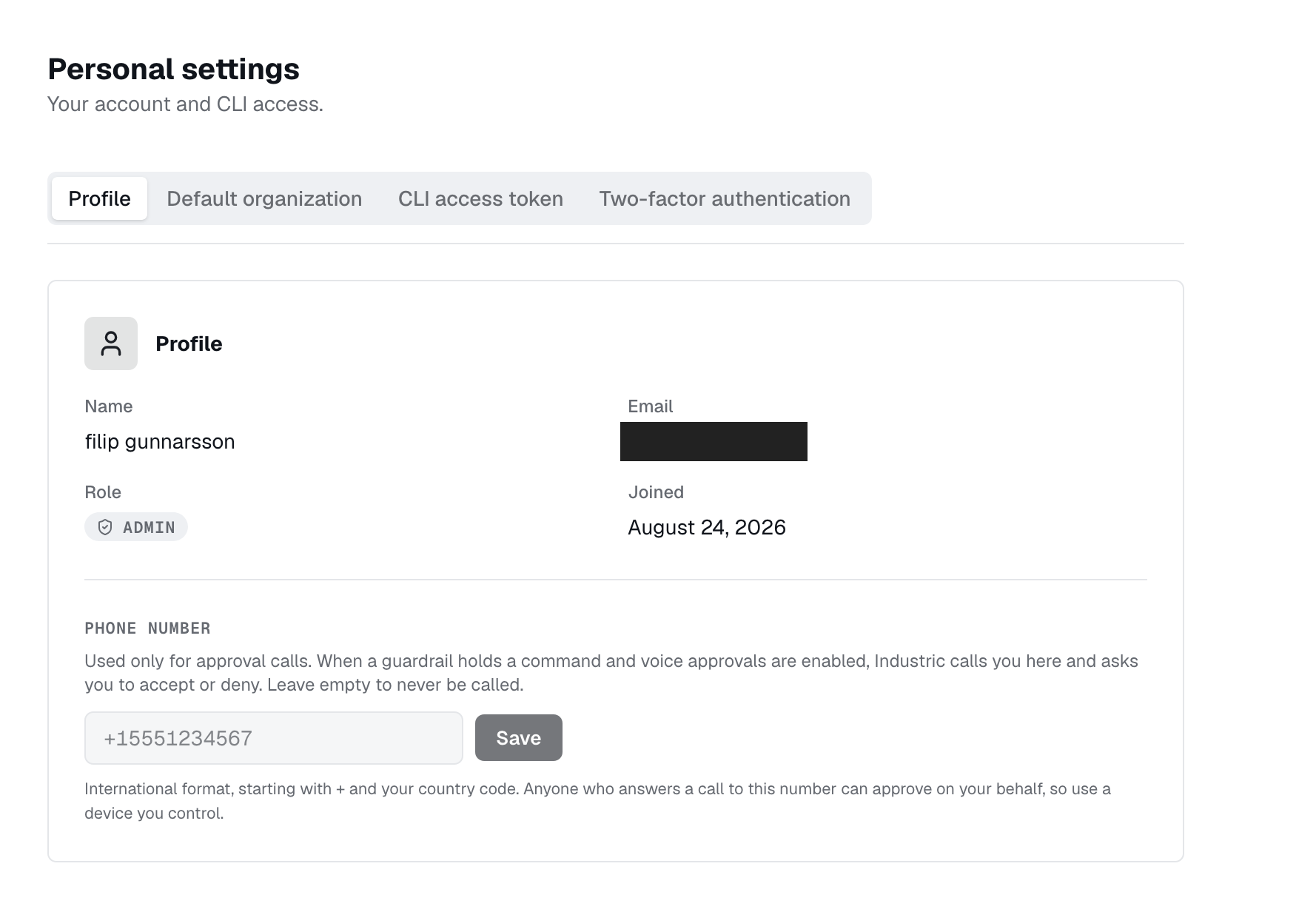
The Profile tab shows your name, email, role, and when you joined. It is read-only: membership and roles are managed by an administrator. If you belong to more than one organization, a Default organization tab also appears, where you choose which org a plain sign-in at /login lands you in.
CLI access token
To use the exo CLI or API without an interactive login, generate a personal access token. On the CLI access token tab, pick a Lifetime (subject to your workspace's service-token limit), then Generate token. Copy it right away: it is not stored and won't be shown again. If you lose it, generate another.
Export it as EXO_TOKEN and the CLI picks it up:
export EXO_TOKEN=<your-token>
exo whoami
Two-factor authentication
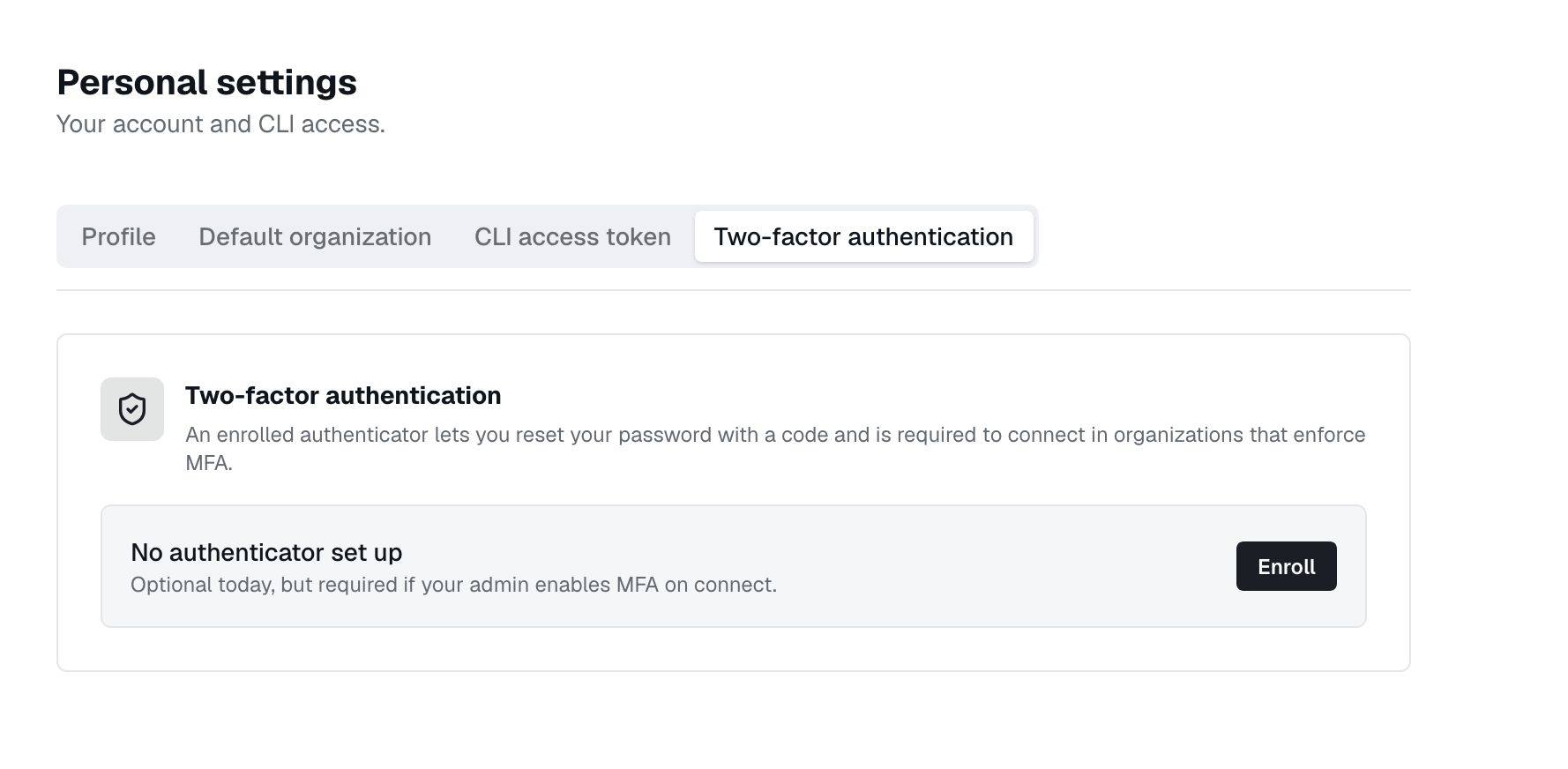
On the Two-factor authentication tab, click Enroll, then scan the QR code with your authenticator app (1Password, Authy, Google Authenticator, and the like) or paste the secret manually. Enter the 6-digit code and Verify & enable. You can Disable it again from the same tab whenever you want.
Personal vs required MFA
Enroll from your account page. Administrators set separate MFA policies for agents and tools in Settings → Security, covering all resources or selected ones. Agent checks can apply to Connect, Run, and filesystem access. A policy can prompt every time or allow a cooldown; five minutes is the default, and the configured range is 30 seconds to one hour.