
Agent
Connect to an agent, run a task, share a live session, or start from a template. Access is governed and sessions are recorded.
An agent doesn't have to work alone. Attach to its session, see what it's doing in real time, type alongside it. The whole exchange is captured for replay later.
Run or connect
There are two ways to work with an agent:
- Run fires a run in the background. Watch it live if you want, or read the session after.
- Connect opens a live terminal into the agent. You see every step and can type alongside it.
Connect to a Session
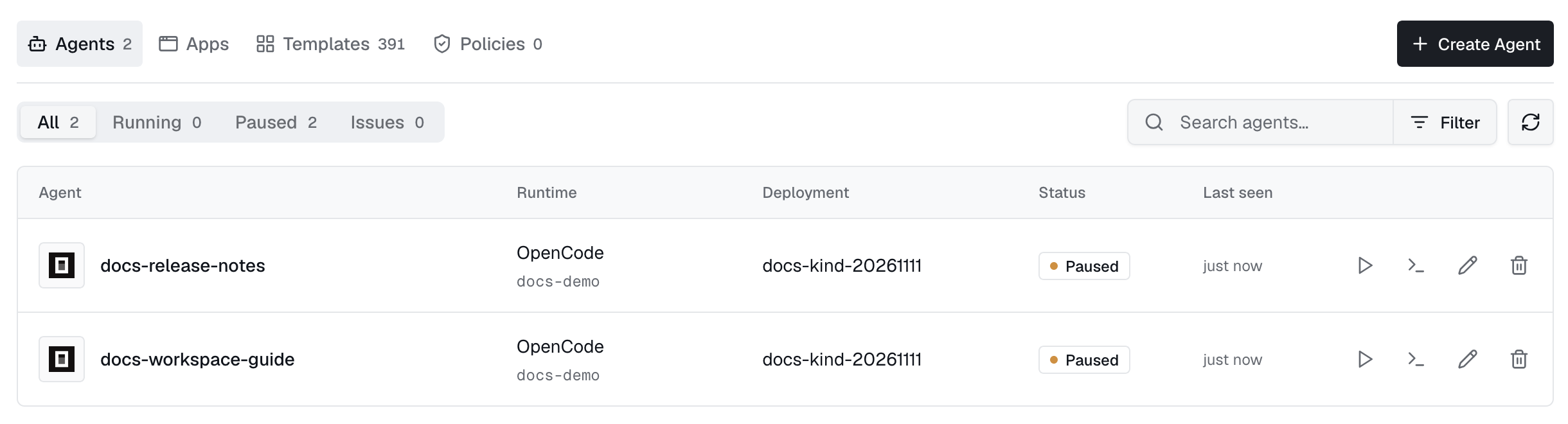
Connect to the agent
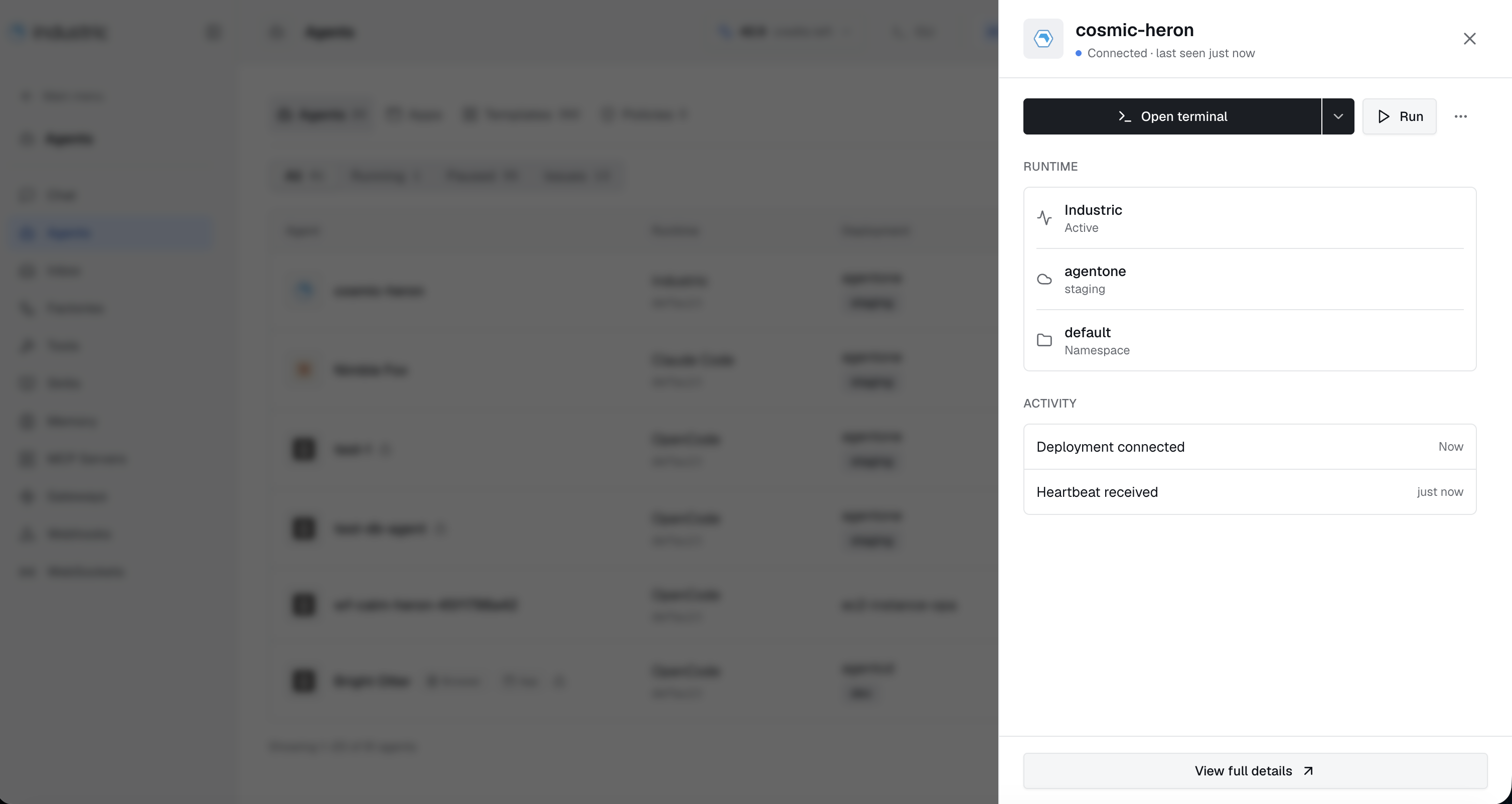
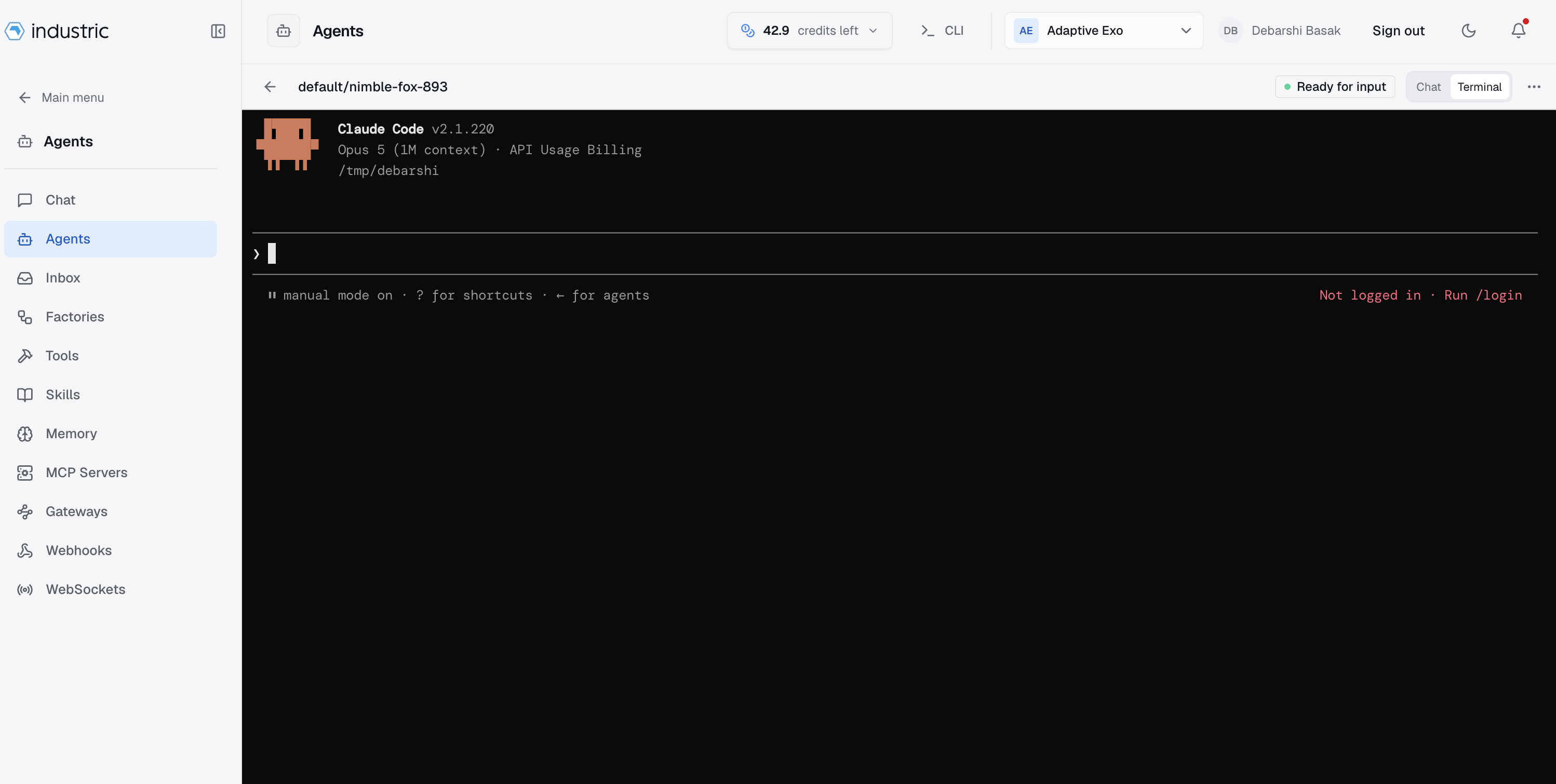
In the Platform, open Agents and select the agent you want to work with. In its sidebar, select Open terminal. When the runtime is ready, type your message to begin.
Using CLI
Connect by deployment/namespace/name. By default the CLI routes through the control plane (no kubeconfig needed) and records the session:
exo agent connect staging/production/triage-bot
The terminal goes raw. Keystrokes flow straight to the runtime CLI (claude, codex, opencode, …).
A live session is not a private window. The session panel shows everyone watching, Share copies a link that drops a teammate into the same session, and control can be requested and handed over rather than fought over. A session can also be branched: start a copy of the session, try something on it, and bring it back into the original if it works.
Running an agent
exo agent run fires a run in the background. By default, the CLI follows the run output:
exo agent run production/triage-bot
exo agent run triage-bot --goal "Triage only P1 issues today"
exo agent run triage-bot --json
exo agent run triage-bot --reason "manual rerun"
Connecting to an agent gives you a shell you drive. A run is the other mode: the agent works on its goal by itself and you watch. Runs are addressed by URL, so a refresh, a closed tab, or a colleague opening the same link all land on the same live output.
Start a run
Run appears on the agents list, the deployment page, and an agent's detail page. Clicking it dispatches immediately and takes you to the run page. Agents that opt into user context get one extra step first: a box for free-text instructions for this run only — the ticket you are chasing, the branch to look at — which the agent receives alongside its goal.
The run page
The terminal is the run's real output, not pod logs: the same byte stream the session recorder persists. Joining late is fine — the stream replays its backlog on attach, so you see what already happened before catching up to live.
The header carries the run's session id and a status chip: starting while the pod comes up, running while it works, and a terminal state when it is over. If the socket drops, a Reconnect button re-attaches without losing the transcript.
Leaving without losing it
Minimize — or simply navigating away — docks the run as a tab at the bottom of the screen. The tab spins while the run executes, pulses when the agent is blocked waiting for input, and flips to a done or failed flag when it finishes. Clicking the tab returns to the run page. Dismissing the tab never cancels the run; it only stops showing it. See the terminal dock.
Cancelling
Cancel run asks for confirmation, then stops the run for real: the operator kills the run's process tree in the pod, including its background session, and the run is marked terminated. This is a genuine stop, not a UI dismissal — use it on a run that is looping or working from a wrong premise.
After it ends
A finished run keeps its page, plus two links: Replay plays the recorded terminal back at speed, and Timeline shows the parsed event stream — prompts, tool calls, results — merged with the audit record. Both live under Sessions, where every run is searchable after the fact.
From the CLI
exo agent run prod/adaptive/triage-bot --reason "nightly triage"
exo agent connect prod/adaptive/triage-bot
exo agent run waits while the pod is pending, then streams the live output the same way the dashboard does; add -v for the status block.
Recording
Connects routed through the control plane are recorded as an asciicast and land in the deployment's sessions, with an agent.connected event noting who attached to which agent and when. Terminal output is redacted before storage.
Shared agent sessions
Share and join
Use Share in an agent shell to copy its session URL. A teammate joins as a viewer after the usual tenant, agent access, and required MFA checks. The URL itself grants no access. Sharing applies to agent shells; tool and bastion shells remain solo.
The operator must advertise shared-shell support. An older operator returns 409 shared_shell_unsupported. Ended sessions return 410 with a recording reference.
Host, controller, and viewer
- Host: starts the session, keeps keyboard input, sets terminal size, grants or revokes control, and ends the session.
- Controller: can type and answer prompts alongside the host. There is at most one controller.
- Viewer: watches output and can request control.
Granting control adds a second keyboard; it does not take the host's keyboard away. The host remains the host after disconnecting. An existing controller may continue, but new control grants wait for the host to return. A dropped controller connection retains its role for a five-minute grace period; an explicit leave releases it.
Fork and merge context
For Claude Code, participants can fork a live conversation into a branch they host. Its transcript starts from the parent's checkpoint. The branch uses the same pod and filesystem, so simultaneous edits can conflict; it is not an isolated worktree.
Merge previews an editable summary that becomes context in the parent conversation. If the requester is not the parent host, that host approves or declines. A busy parent queues the merge until it can accept input. Merging does not merge Git changes or end the branch; its host ends it separately.
Agent templates
Choose a template
Open Agents → Templates. Browse the built-in library by business function, expand a template to read its playbook and expected tools, then select Use to prefill the create-agent form. Workspace templates appear alongside the built-ins.
exo agent search incident
exo agent search postgres approval --category SRE
exo agent search --archetype Analyst --json
Review the resulting agent
Select the deployment, provider, model, and available tools or MCP servers before creating the agent. A template's requirements describe the intended toolchain; they do not create credentials or prove the agent has access. Verify the resulting bindings and policies, then run a small task and inspect its session.
Built-in templates are read-only and ship with the backend, so upgrading changes the catalog. An API request can pass the template's template_id; template values fill fields the request leaves unset. See Agents for the full runtime configuration.