
Chat
Work with models, tools, skills, and agents in the platform, and continue the same conversations from the CLI.
Chat in the platform
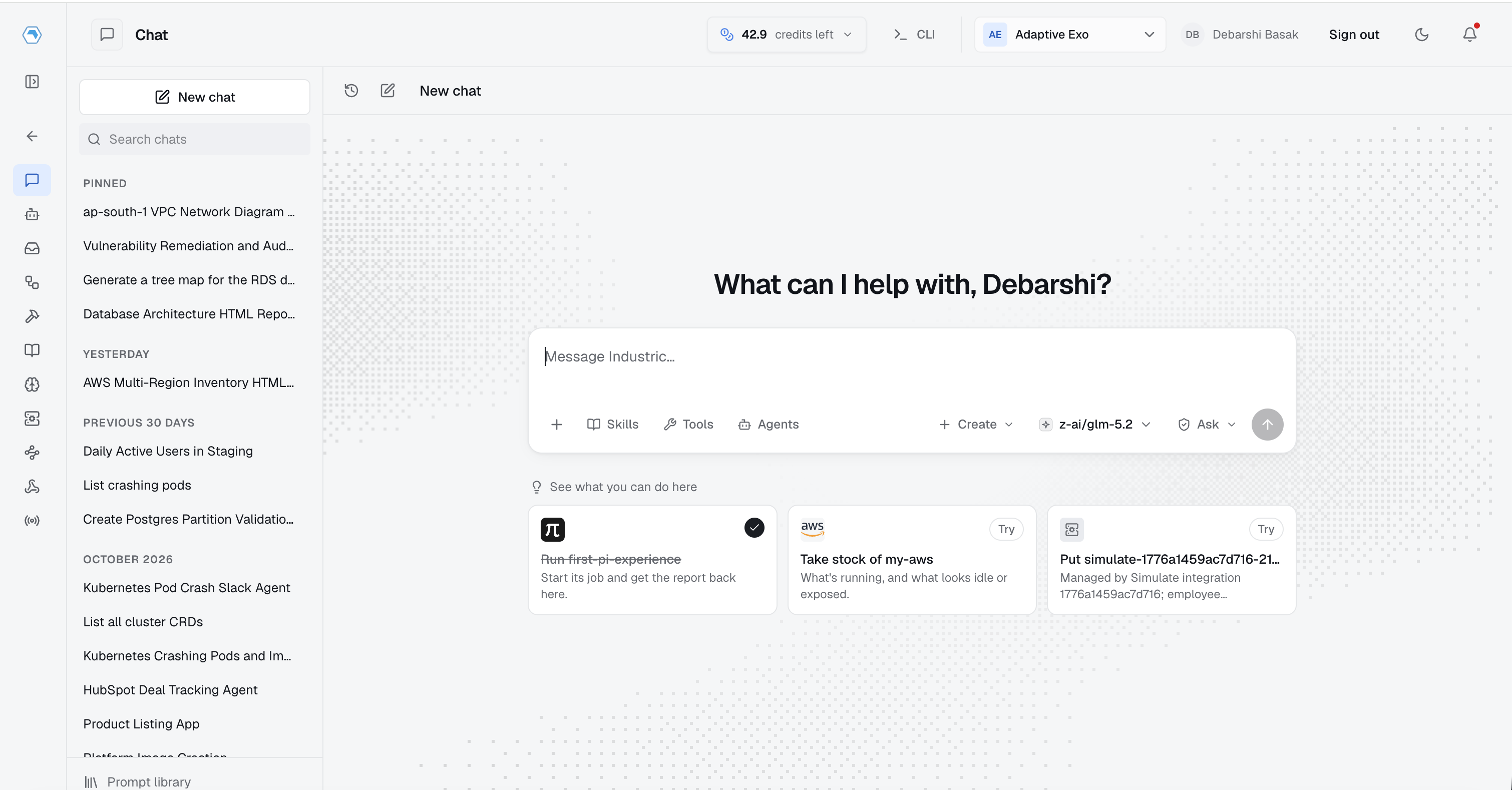
Open Chat in the platform and start a new conversation, or search your chat history to continue an existing one. Choose a model and select the skills, tools, or agents you want to work with before sending your message. As you type, Chat suggests relevant tools and MCP servers based on the context of your message.
Conversations and artifacts
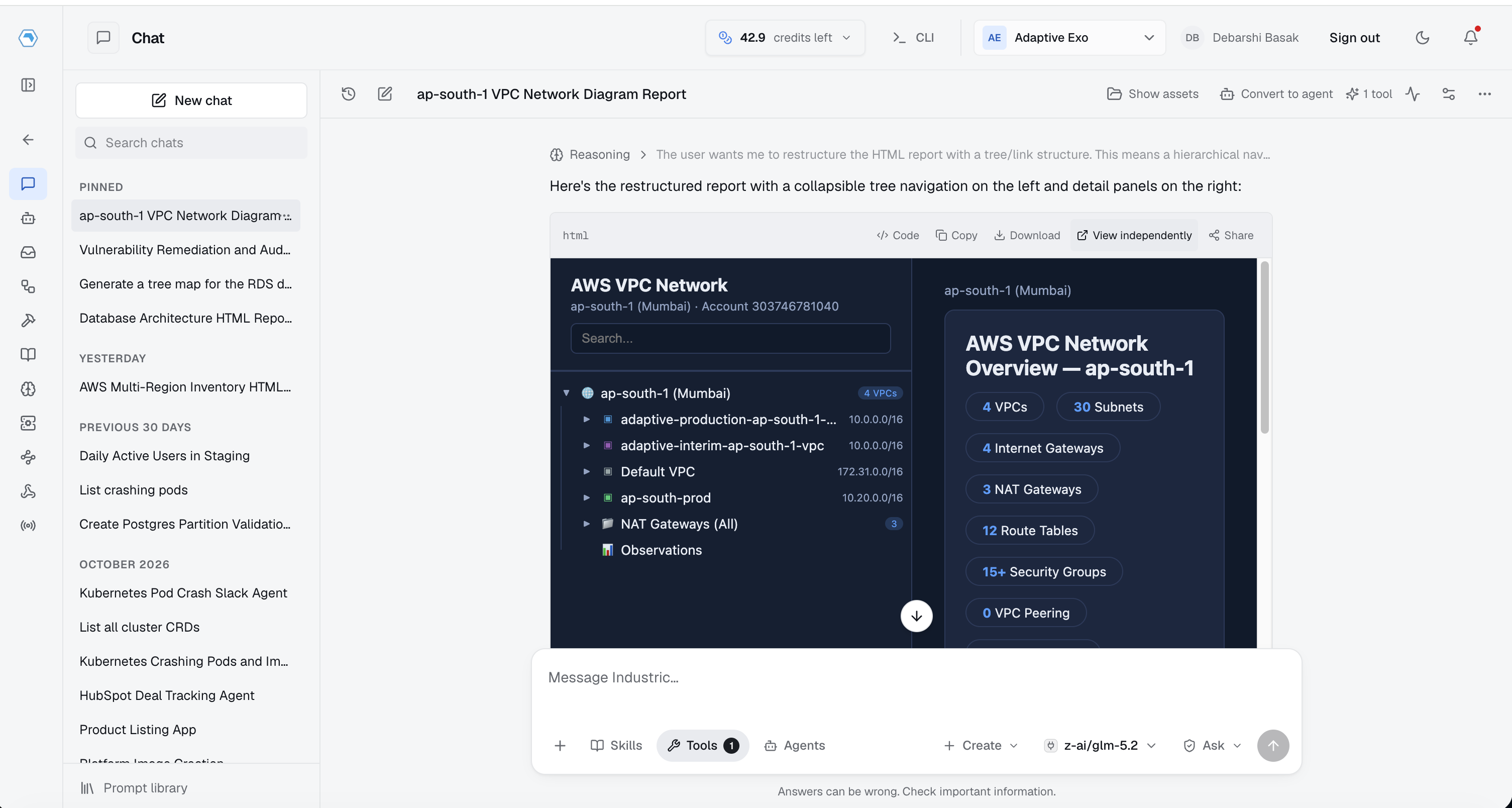
Resume a conversation with its context at any time. Responses can include reports, code, and visual previews. Copy or download generated artifacts, open them independently, or share them with teams and users.
Exo chat with CLI
Use exo chat from your terminal with the same conversations, models, tool permissions, approvals, and billing as platform chat.
Start or resume
exo chat
exo chat "Summarize recent changes"
exo chat list --search compliance
exo chat resume <conversation-id>
exo chat --plain
exo chat uses your existing login or EXO_TOKEN and the platform chat runner. It does not start a separate local agent. With no prompt it opens a terminal interface; a prompt argument or piped input runs one turn. Put flags before the prompt.
Press Enter to send, Alt+Enter or Ctrl+J for a newline, and Page Up/Down to scroll. Each session prints its web conversation URL to stderr.
Select models and capabilities
exo chat models --refresh
exo chat capabilities
exo chat --tool <tool-id> --skill <skill-id>
exo chat --attach report.csv "Analyze this report"
Tool, skill, agent, and MCP flags can be repeated. On an existing conversation, supplying a capability flag replaces that selection; --tool none clears it. Unspecified settings are preserved. Leading @agent mentions use the same agent routing as web chat.
Approvals and stopping
Ask mode is the default: allow once, always allow in this conversation, or deny a proposed tool call. An empty answer denies. --mode auto or /mode auto enables automatic execution of selected tools, subject to organization policy and permissions.
A noninteractive call that needs approval exits with instructions instead of approving automatically. Use the commands below to decide and resume. Ctrl+C requests cancellation of an active response; /quit exits between turns. If a send acknowledgement is lost, inspect the saved conversation before sending again.
exo chat approve <conversation-id> <approval-id> --decision allow
exo chat resume <conversation-id>
exo chat cancel <conversation-id>